Evidence storage

Use Casewyze cloud storage or connect outside evidence links.

Casewyze gives investigative teams two ways to organize case evidence: upload files into the internal Casewyze cloud, or attach URLs from outside storage providers like Google Drive, OneDrive, SharePoint, Dropbox, Box, iCloud, and generic web links.

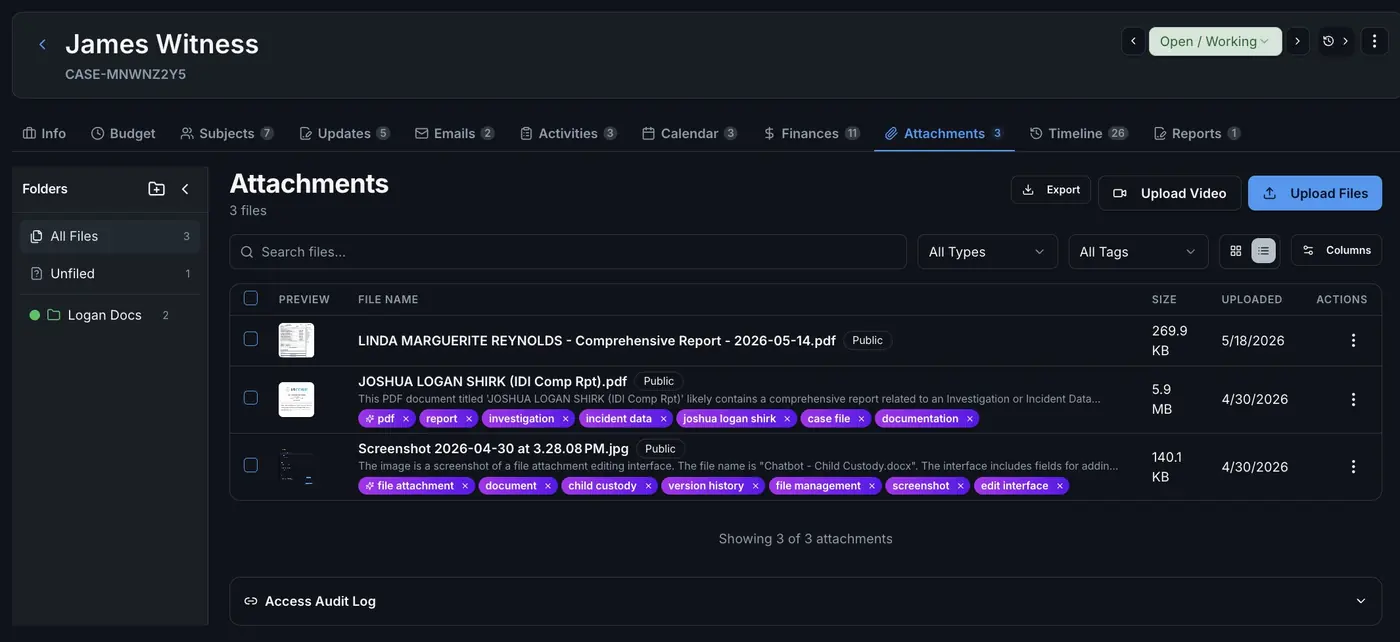
Casewyze attachments workspace showing evidence files, previews, folders, tags, upload controls, and an access audit log
Case attachments Files, links, folders, tags, previews, visibility groups, export tools, and access history stay tied to the case record.

Two storage methods for different evidence workflows.

Not every file belongs in the same place. Some evidence should be uploaded directly to Casewyze. Other files already live in a client drive, firm workspace, or agency archive. Casewyze supports both patterns without forcing teams to duplicate large files.

Internal Casewyze cloud

Upload evidence directly into Casewyze when the case file needs the material stored inside the platform.

  • Drag and drop documents, images, PDFs, and other supported files.
  • Generate thumbnails and previews for quick review.
  • Use folders, tags, notes, access groups, exports, and downloads.
  • Keep uploaded files inside the organization storage allocation.
External URL attachments

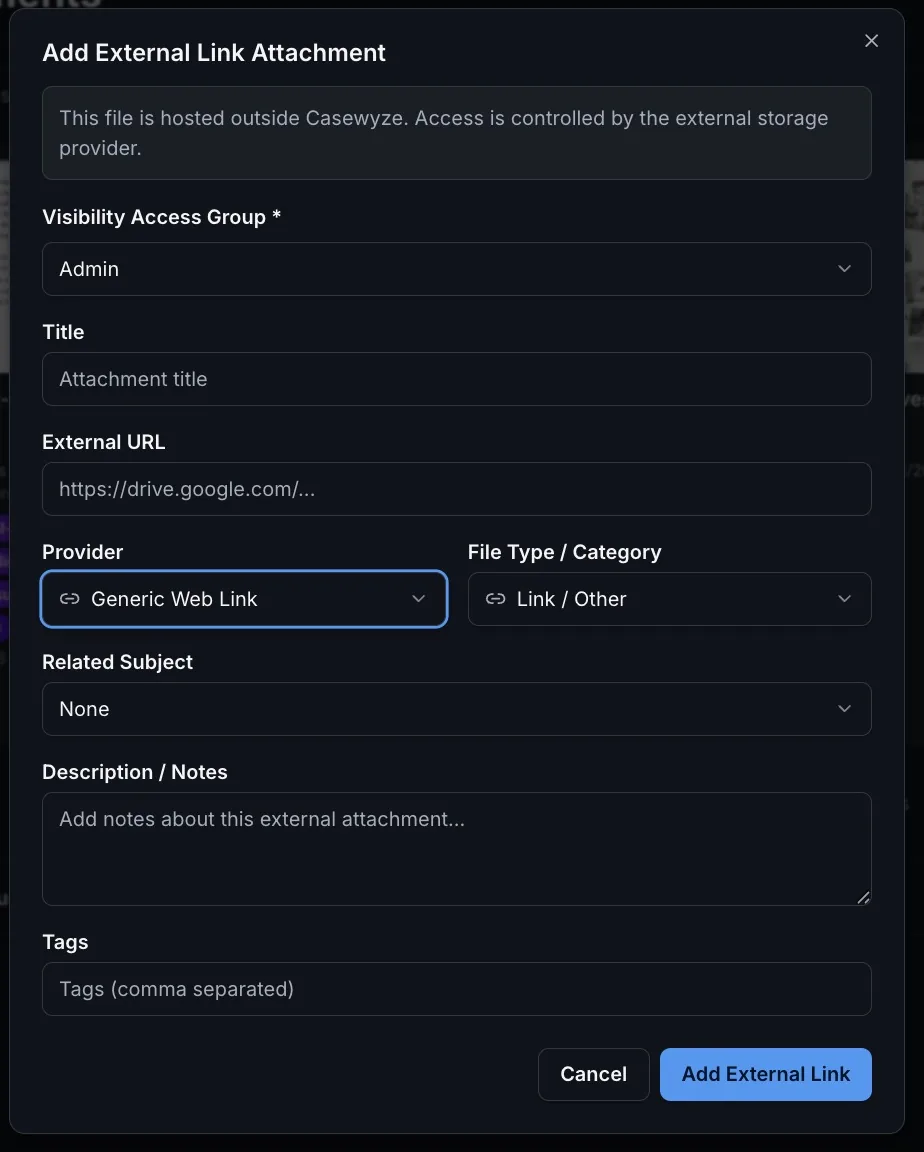
Add a link to files that stay hosted in an outside system while the attachment record stays visible in Casewyze.

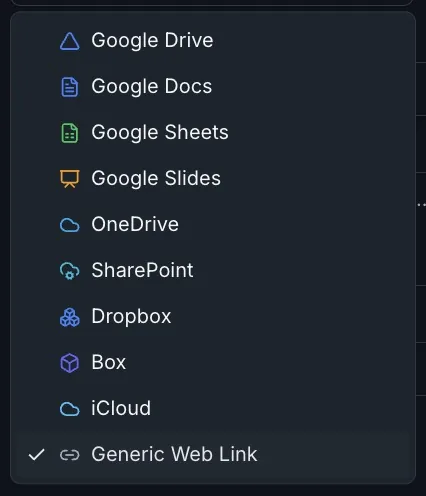
  • Paste URLs from Google Drive, OneDrive, SharePoint, Dropbox, Box, iCloud, or other web locations.
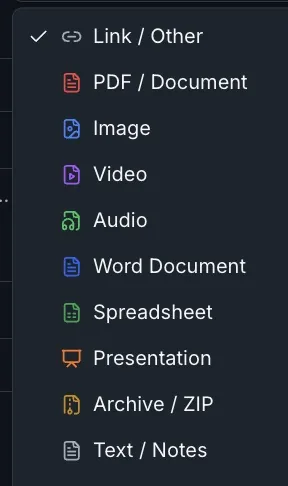
  • Select provider and file category for cleaner filtering.
  • Add titles, related subjects, descriptions, notes, tags, and visibility groups.
  • Preserve Casewyze storage capacity because the file is not copied into Casewyze.
Internal cloud

Upload evidence when the file should live in Casewyze.

Internal cloud storage is the direct upload route. It is the right fit for files your team wants to keep inside the Casewyze case workspace, preview in context, include in exports, or manage through the platform’s case-level evidence tools.

Upload

Files enter the case workspace

Upload PDFs, documents, images, and other supported evidence files into the selected case with the right visibility access group.

Organize

Folders, tags, and AI notes

Use folders, tags, descriptions, AI-generated summaries, and notes to make uploaded evidence easier to scan and retrieve.

Review

Previews and audit context

Preview files inside the case, download or export when needed, and keep access activity visible for internal review.

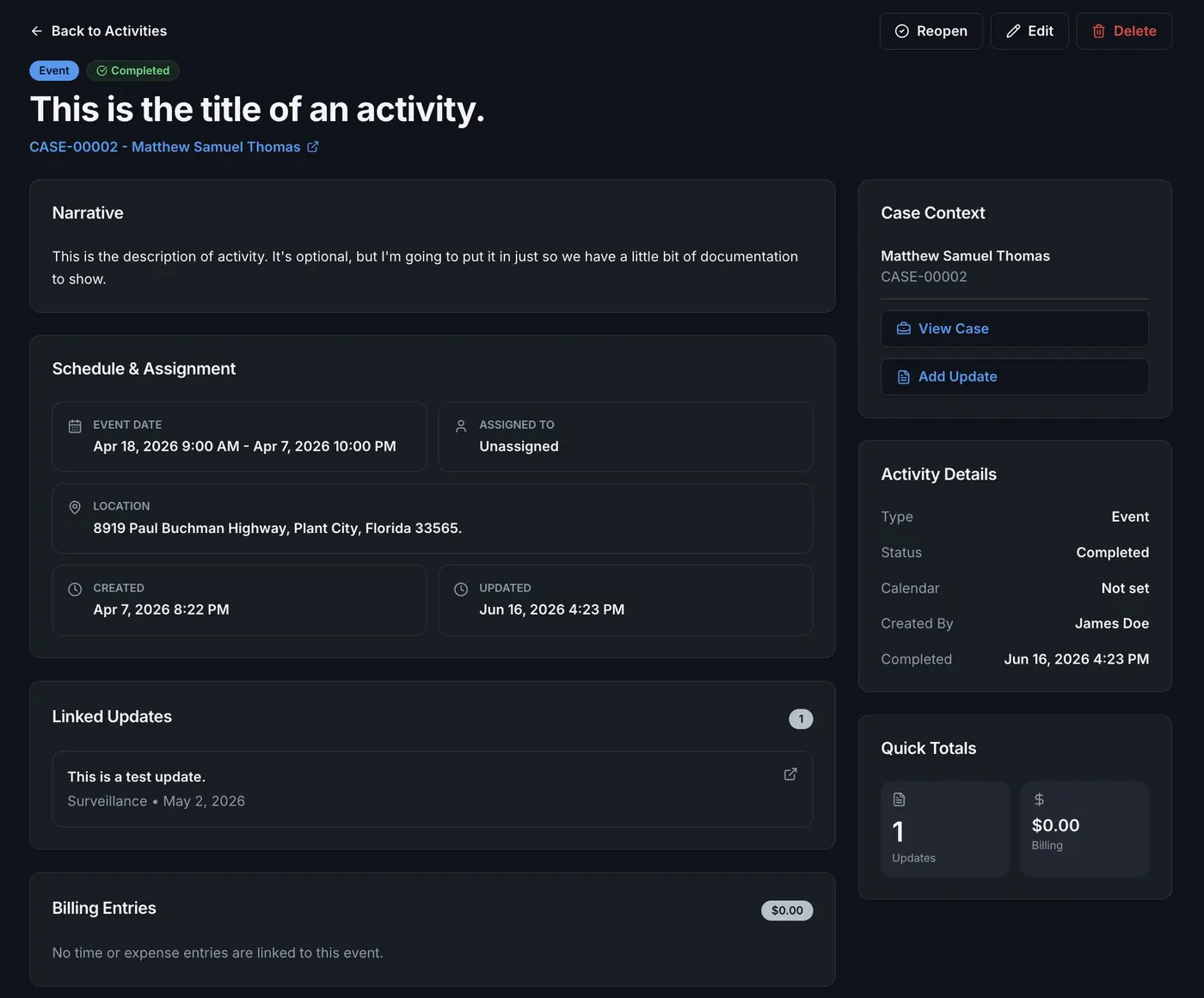
Casewyze case activity detail screen with linked updates, billing records, assignment, and case context
Case context Uploaded files sit alongside the rest of the case record, not in a disconnected folder.
Storage savings

External links preserve the organization’s Casewyze storage limit.

When a file is uploaded into Casewyze, the file counts against the organization’s Casewyze cloud storage allocation.
When a file is added as an external URL attachment, Casewyze stores the link and metadata while the file remains hosted by the outside provider.
This lets agencies keep large video, client-hosted records, shared drive files, or long-term archives connected to the case without duplicating storage.

Use the method that matches the file.

Most agencies will use both methods. Upload the material that needs to live directly inside the Casewyze evidence workspace. Link files that already live in an approved external storage system, especially when storage size or client ownership makes copying unnecessary.

Upload internally

Core case evidence

Use internal cloud storage for documents, photos, reports, and evidence your team wants handled as Casewyze-hosted case material.

Link externally

Large or already-hosted files

Use external link attachments for large surveillance video, shared client folders, law firm drive files, or archives already governed elsewhere.

Keep context

One case record

Whether uploaded or linked, the attachment can still carry title, type, notes, tags, subject context, and visibility settings inside Casewyze.

Clear access responsibility.

External links are intentionally different from mirrored file storage. Casewyze controls who can see the attachment record inside Casewyze. The outside storage provider controls whether a user can open the linked file itself.

Casewyze controls the attachment record

Visibility groups and case permissions determine who can see the linked attachment metadata inside the Casewyze workspace.

The provider controls the file

Google Drive, OneDrive, SharePoint, Dropbox, Box, iCloud, or another host controls the underlying file permissions and sharing rules.

Your agency controls the policy

Teams can decide when evidence belongs inside Casewyze and when a reference to an external system is the better operational choice.

Keep evidence connected to the case.

Upload files directly when Casewyze should host them, or attach outside URLs when external storage is the better fit. Either way, the evidence context stays with the investigation.

Start your 14-day free trial